Editor Facelift & Slash Commands
A cleaner editor
The editor now works like the content should: focused and out of your way.
Benefits content that employees actually understand doesn't happen by accident. It takes builders who can concentrate on what they're making — not wade through visual noise to get there.
Today's update shifts the Brite editor around that idea. Nothing functionally has changed. The panels and headers that used to compete for attention with your content have stepped back. What's in front of you now matters: the guide, the page, the decision an employee will eventually read when they're trying to figure out which plan makes sense for their family.
Key Additions:
You will now see other users who are in the guide at the same time as you in the list of user icons in the guide header
Version history is tied to the person who made the changes; you’ll now see a name associated with each version
Slash commands
Build faster without lifting your hands off the keyboard.
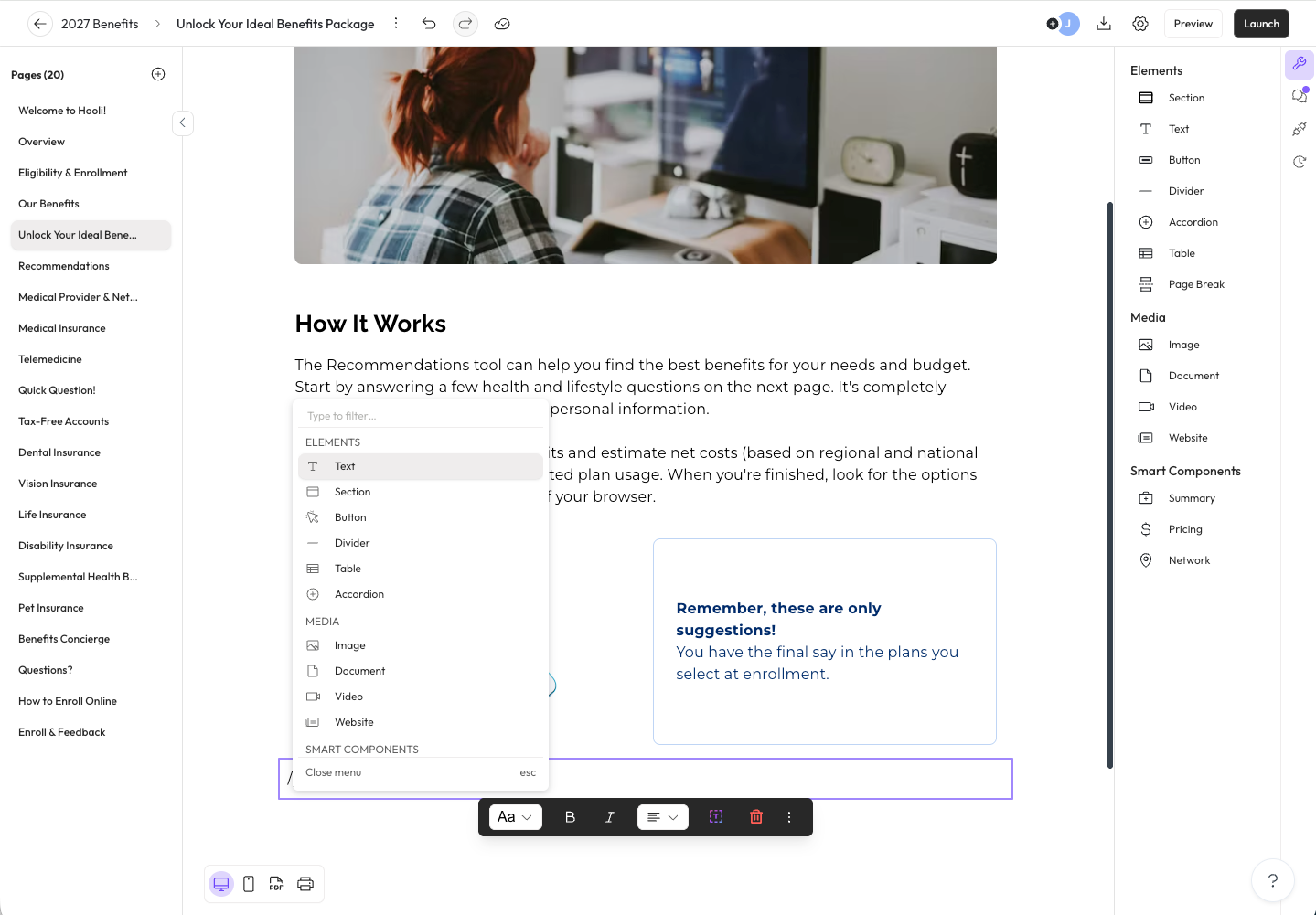
Adding components and formatting your content just got simpler. Type / anywhere inside a text box to open the command menu — a searchable list of components and text style options. Scroll through it, click what you need, or use the arrow key down and press Enter. Your content does the rest.
Need a new text box beneath wherever you're working? Press Shift + Enter.
These aren't just convenience features. Every second a builder spends hunting for a tool is a second they're not thinking about the employee reading their content. Slash commands keep your focus where it belongs.
How to use it:
Type
/inside any text box to open the command menuScroll, search, or use arrow keys to find what you need — then click or press
Enterto add itPress
Shift + Enterto add a new empty text box directly below your current position