The Properties Panel: An enhanced editing tool with extended customization options
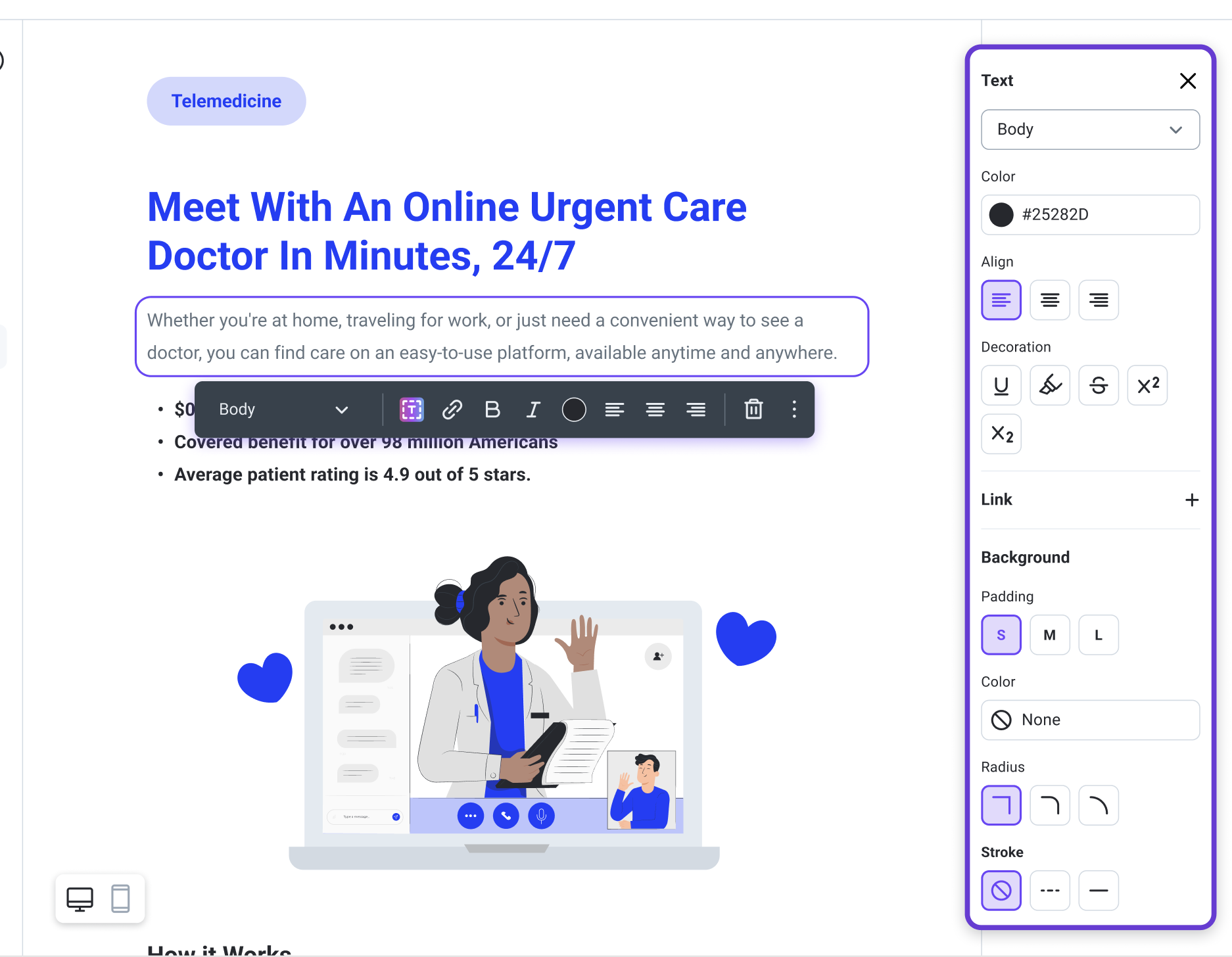
We're excited to announce a revamp of the editing properties panel and dynamic inline tools for crafting Brite guides. Below, you'll find details of the enhancements designed to elevate your editing experience.
Step by Step Guide
Double-click on any component to open the properties panel
or
Click on any component
Click on the 3 vertical dots (ellipsis) on the right side of the toolbar that appears beneath the component, and you’ll see the properties panel open
Enhanced Editing Tools
Dynamic Inline Properties
The inline properties toolbar now adapts to display the most frequently used features when interacting with text.
Additional options are accessible by double-clicking the text box or clicking the ellipsis icon, opening a comprehensive properties panel on the right.
Multi-Level Properties Panels
Introduced hierarchical properties for better organization and customization:
Sections: Each section features its own panel with configuration options.
Standard elements & components: Specific properties for elements like text boxes and images.
Expanded Customization Features
Padding and Corner Customization
Adjust padding sizes with predefined options (small, medium, large) or customize each side individually.
Choose from square corners or predefined radii, or specify your preference for cornering elements.
Decoration and Aesthetic Enhancements
New tools include text underlining, highlighting, and formatting options like superscripts/subscripts.
Add strokes (borders) to elements for enhanced visual impact.
Streamlined Link Management
Simplified method for adding and managing links within the properties panel.
Test URLs directly within the panel, bypassing the need to preview the overall guide.
A Few Extras
You can now use keyboard shortcuts like “cmd + c” and “cmd + v” to copy and paste individual components from one guide to another, or from one page to another within the same guide.
The new “Page-Break” component makes it easy to define the page breaks you want when you export the guide to PDF.